
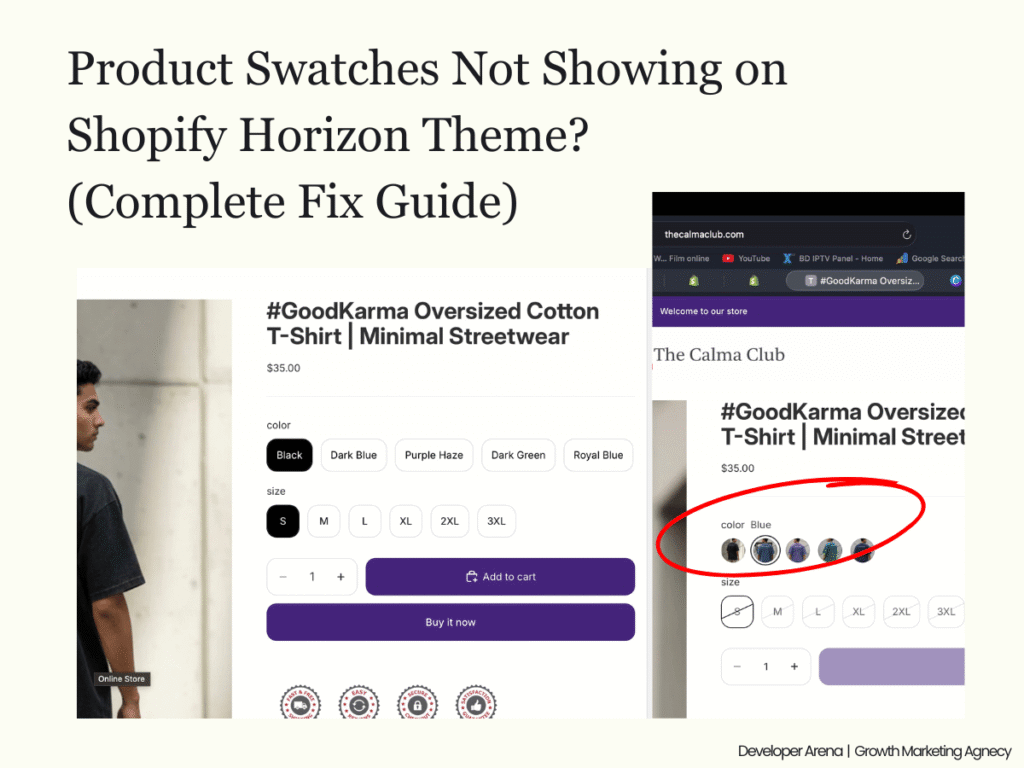
If you’re struggling with product swatches not showing on the Shopify Horizon theme, you’re not alone. Even after following multiple tutorials, many store owners find that color or image swatches still don’t appear on the product page.
The good news? Horizon does support swatches, but they must be enabled correctly in multiple places. In this guide, I’ll walk you through the exact steps to successfully enable color swatches or image swatches on the Horizon theme.
 Why Product Swatches Aren’t Appearing on Horizon Theme
Before jumping into the fix, here’s why this issue usually happens:
-
color or image swatches are not enabled in the Variant Picker
-
Swatch settings are disabled in Theme Settings
-
Variant options are not dynamically connected to the Color metafield
-
Missing or incomplete color values in product variants
Let’s fix all of it step by step 👇
 Step 1: Enable Swatches in the Horizon Theme Product Page
Turn on Swatches from Variant Picker
-
Go to Online Store → Themes
-
Click Customize on your Horizon theme
-
Open any Product Page
-
Click on Variant Picker
-
Turn on Swatches
-
Save the changes
🔹 This step is mandatory — without enabling swatches here, nothing will appear on the product page.
 Step 2: Configure Swatches from Horizon Theme Settings
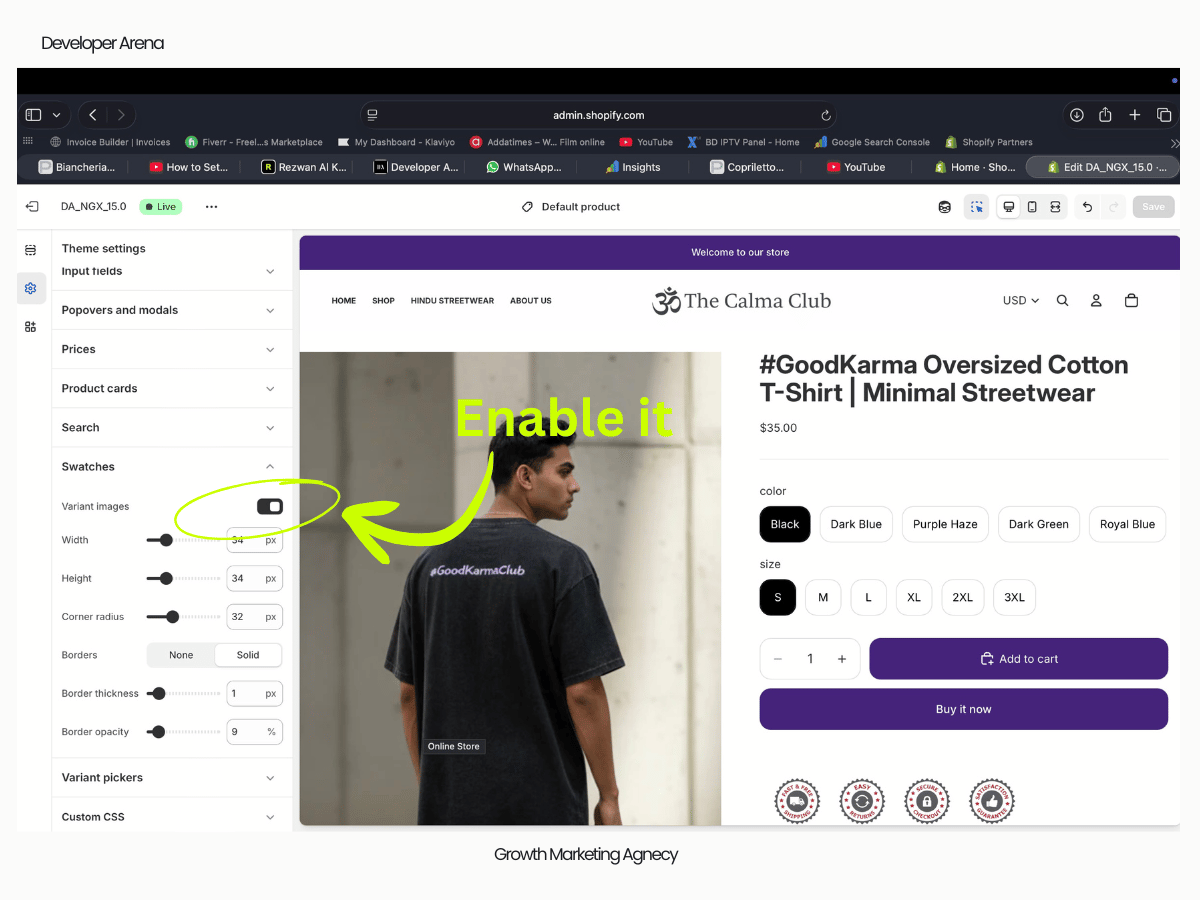
Enable Variant Image or Color Swatches
-
In the Theme Editor, go to Theme Settings
-
Navigate to Swatches
-
Choose one of the following:
-
✅ Turn ON “Variant Image” → if you want product images as swatches
-
✅ Turn ON Color Swatches → if you want solid color circles
-
-
Save the theme settings
💡 You can switch between image swatches and color-only swatches anytime.
 Step 3: Connect Variants to the Color Metafield (Most Important Step)
This is the step most people miss.
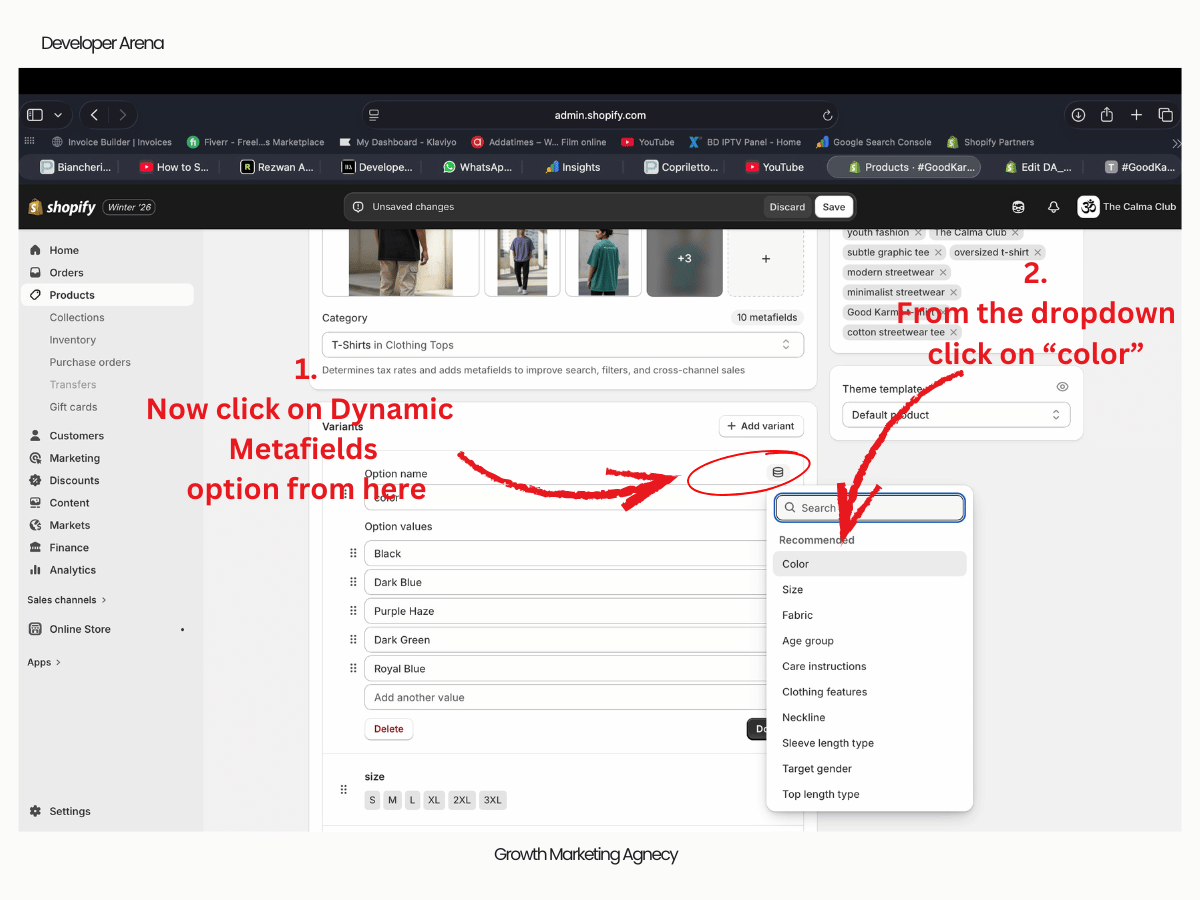
Use Dynamic Connection for Color Variants
-
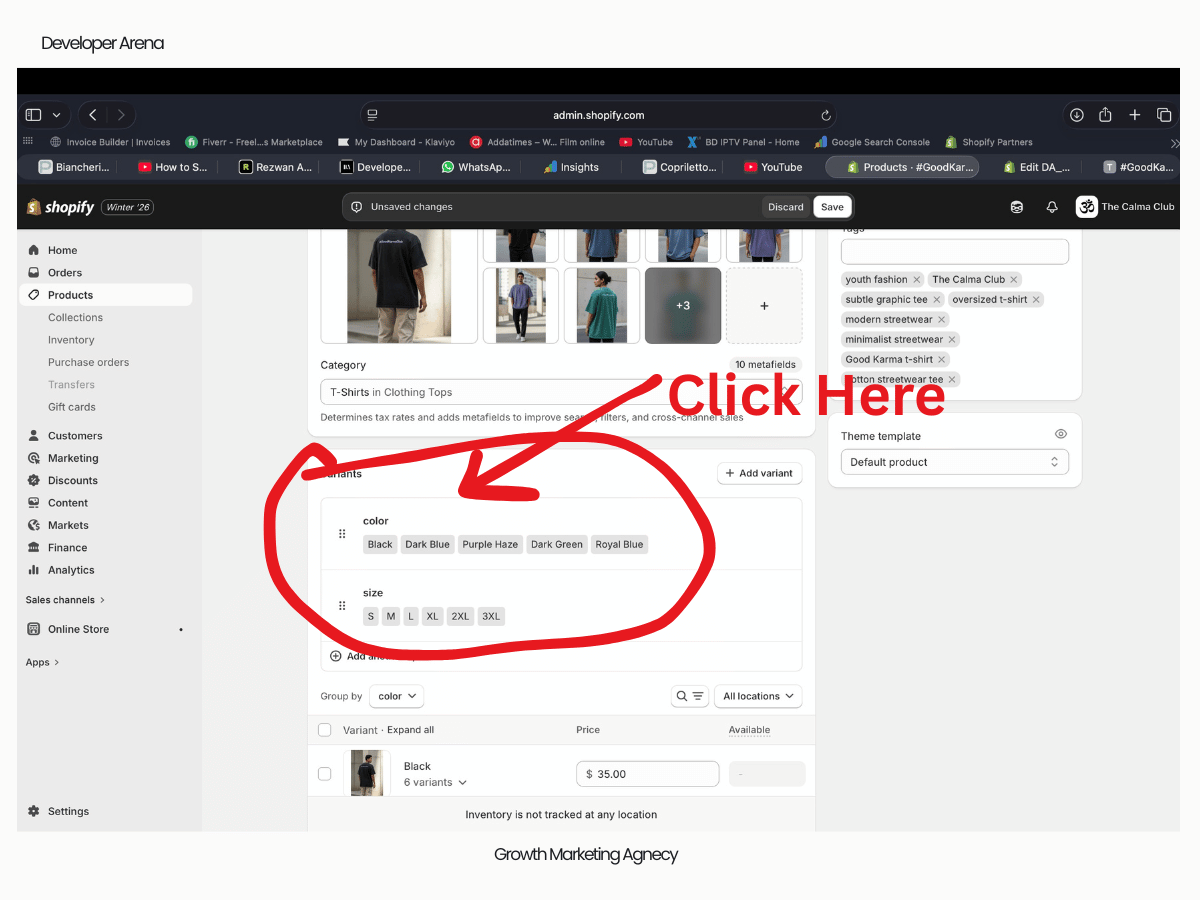
Go to Products → Select the product
-
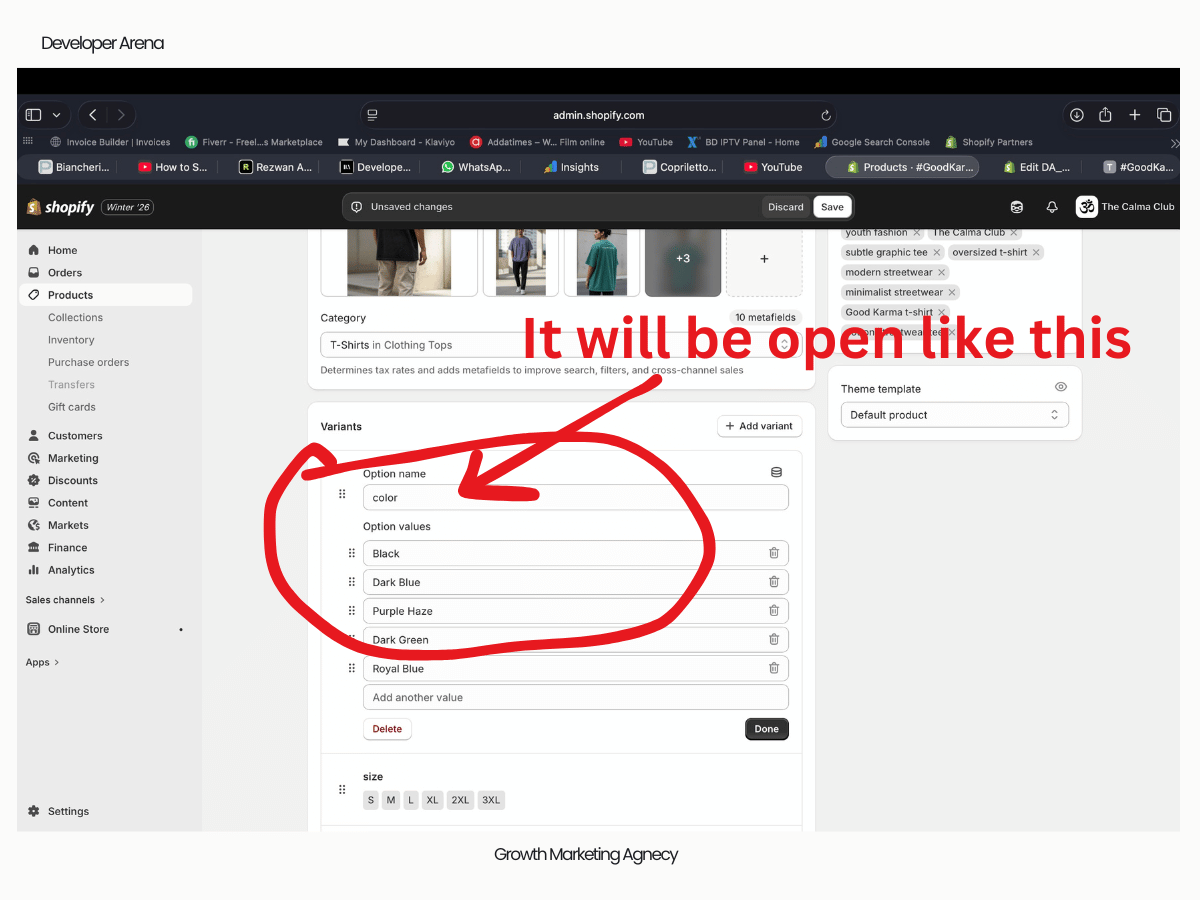
Click on the variant option field (Color / Colour)
-
Click the Dynamic Source (database icon)
-
From the Recommended list, select Color
-
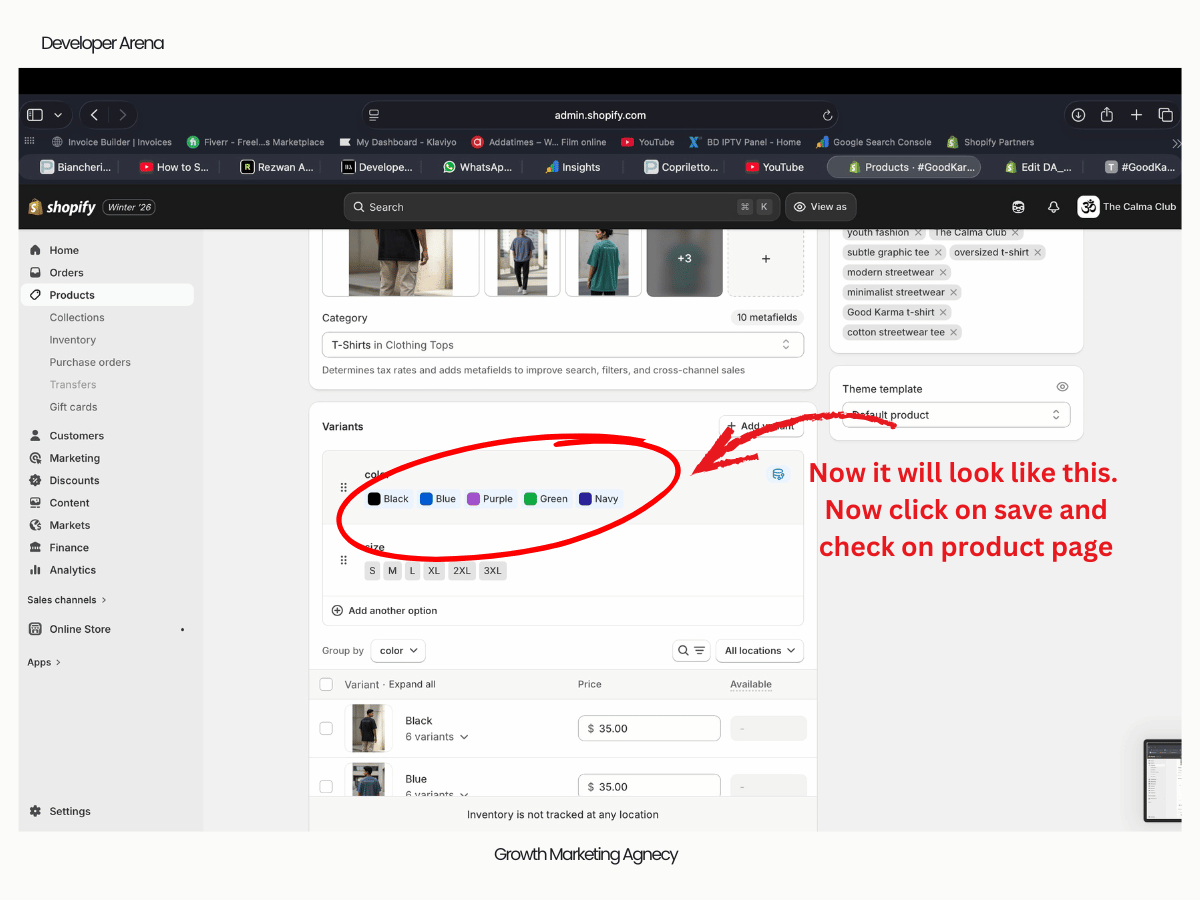
The dynamic connection will link the variant to the Color metafield
-
Check if any colors are missing:
-
Add missing colors
-
Click Save
-
✅ Once connected properly, each variant color will display individually instead of text.
Step 4: Preview the Product Page
Now visit your product page.
🎉 Boom! Your color swatches or image swatches should now be visible and fully functional on the Shopify Horizon theme.
Common Issues If Swatches Still Don’t Show
If it’s still not working, double-check:
-
Variant name is exactly “Color” (case-sensitive)
-
Metafields are properly assigned
-
Theme cache is refreshed
-
You saved changes in all three places
Frequently Asked Questions (FAQ)
Does the Horizon theme support product swatches by default?
Yes, but swatches must be enabled manually from the Variant Picker, Theme Settings, and Metafields.
Can I show product images instead of color circles?
Yes. Enable Variant Image from Theme Settings → Swatches.
Why are some colors missing from swatches?
Those variants are not connected to the Color metafield or haven’t been saved properly.
Final Thoughts
If your Shopify Horizon theme swatches are not showing, the issue is almost always related to incomplete setup, not a theme bug. Follow these steps carefully, and you’ll have fully working color or image swatches in minutes.
🔧 Need Expert Help?
If swatches still aren’t working or you want advanced customization, feel free to reach out. We fix Horizon theme issues fast and optimize Shopify stores for conversion and performance.